
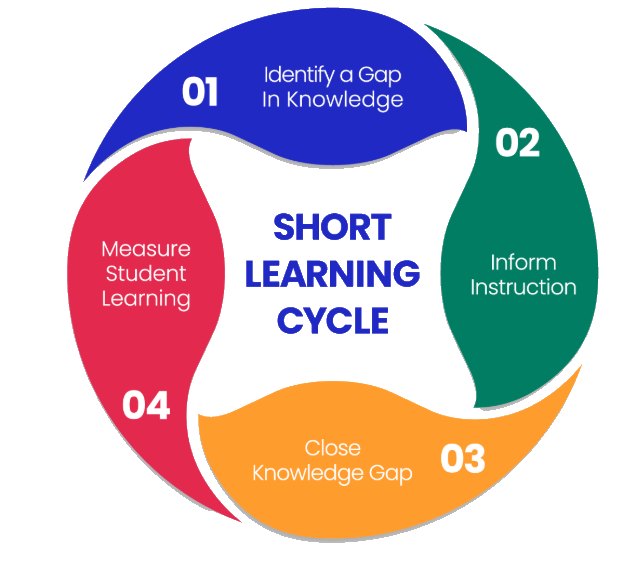
Four steps, one loop. Short learning cycles can catch misconceptions in days, before report card time, with proof the intervention worked.

Use a Knowledgehook assessment activity, either a GameShow or Mission, to see which students are struggling with the specific math concept you are teaching.
GameShow works live with the whole class. Missions works as independent assignments.
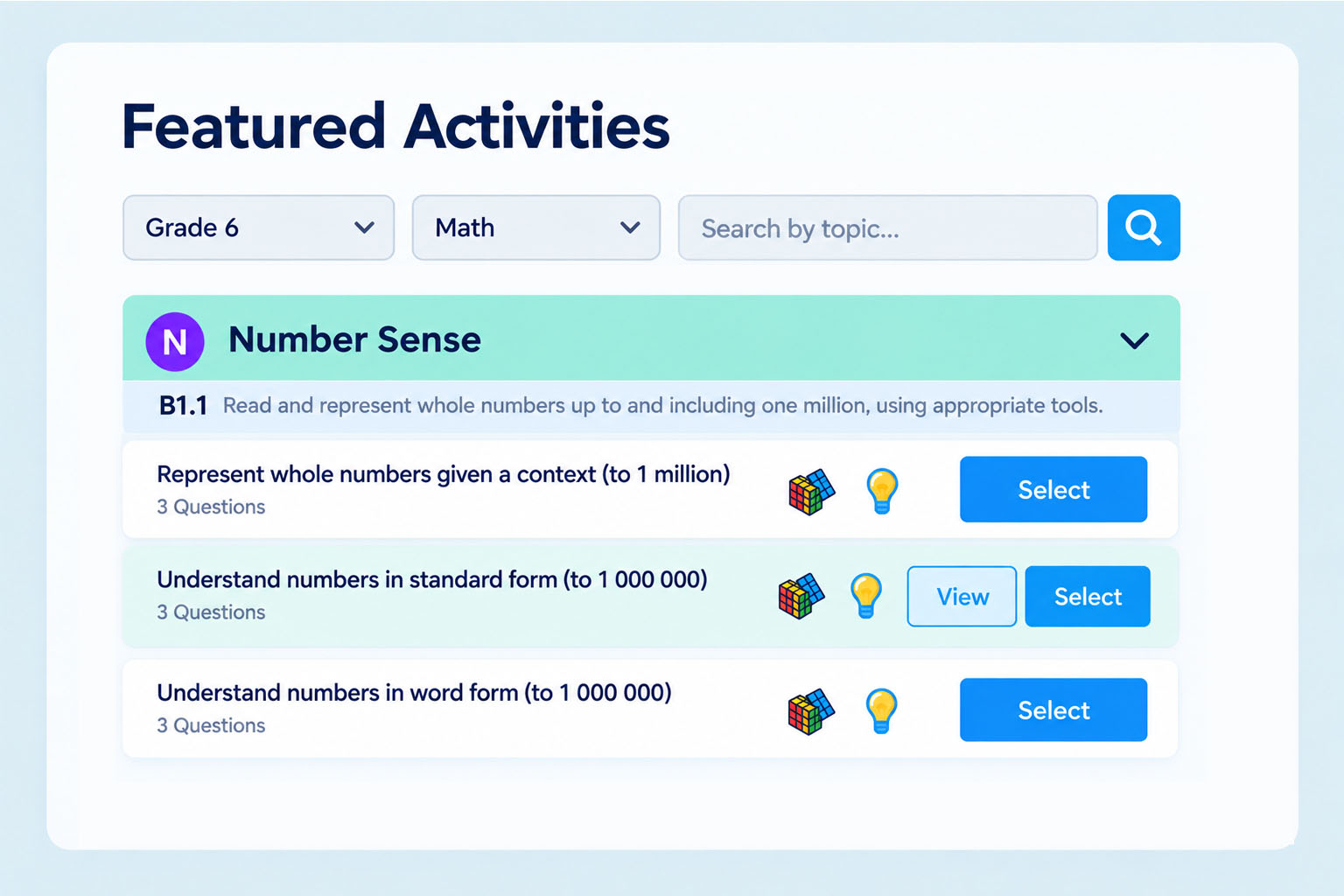
Open the class you are teaching.
Select Activities from the top menu.
Select a topic category, such as Number Sense, then press “select” for the sub topic that matches your lesson.
Select Play GameShow, then Invite Students to open the waiting room.
Students go to khmath.com/join on their devices and enter the class code on your screen.
Watch names appear under Students Joined, then select Play.
After each question, you'll see the percentage of students who chose the correct answer and each distractor. That's your gap, live.
Turn on Capture Student Thinking to see photos of students’ written work and talk through their strategies.
In the class you are teaching, select Activities from the top menu.
Select a topic category, such as Number Sense, then press “select” for the sub topic that matches your lesson.
Choose Assign Mission.
Name the Mission and set a due date with the date picker.
Open Advanced Settings for a future start date, or to assign only certain students.
Select Launch. The Mission then shows up on your Reports page.
Open Reports once students have worked through it to see who struggled and where.
Note: Missions need a ClassOS Pro subscription to be assigned.

Read the assessment data to pinpoint who is struggling and where, then open the targeted Teacher Support Resources to plan an intervention that addresses those gaps.
The resources are matched to the concept, so no hunting required.
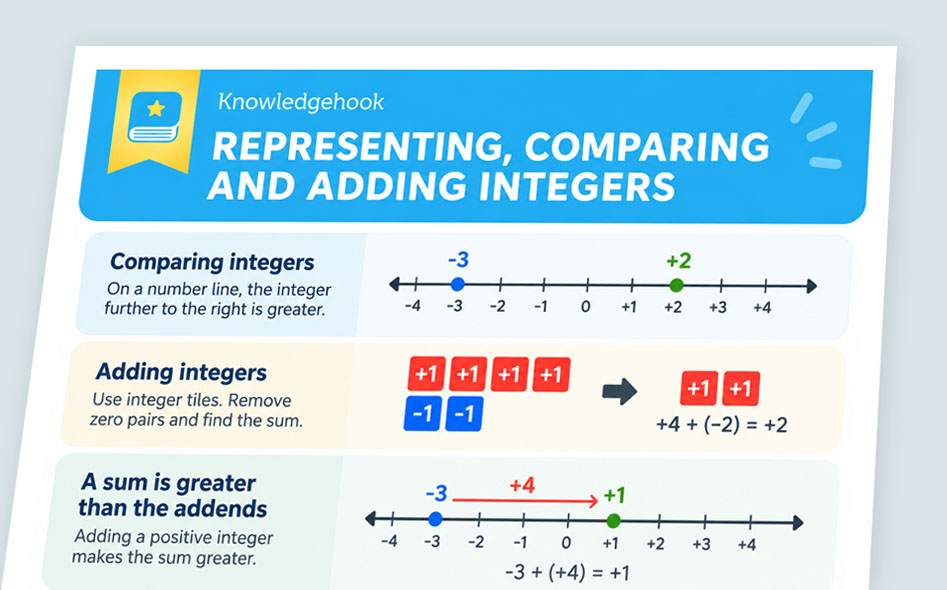
Open your report or the activity for the concept students struggled with.
Look for the lightbulb icon: that is where Teacher Support Resources live.
Click it to see the resources available for that topic.
Choose the one that fits your plan: Math Background, Misconception Chart, or Intervention Questions.
Plain-language explanation of the concept, its curriculum connections, and real-world examples. Read it before you teach.
The common wrong turns, why students take them, and strategies to clear them up. Best read next to your results.
Scaffolded, focused questions with teaching strategies, the material for the intervention itself in Step 03.

Teach the intervention. Work through the gaps with your students using the Teacher Support Resources reviewed in Step 2.
Small group, whole class, or one-on-one intervention sizes should be considered, based on the number of students affected.
The Intervention Questions from Step 02 are built for exactly this moment: scaffolded practice on the concept, with strategy suggestions attached. Pair them with the Misconception Chart so you know which wrong turn you are unpacking.


Assign follow-up assessment questions to measure growth after the intervention. The comparison tells you whether the gap closed, or whether you should intervene once more.
You can run multiple growth reports for the same activities
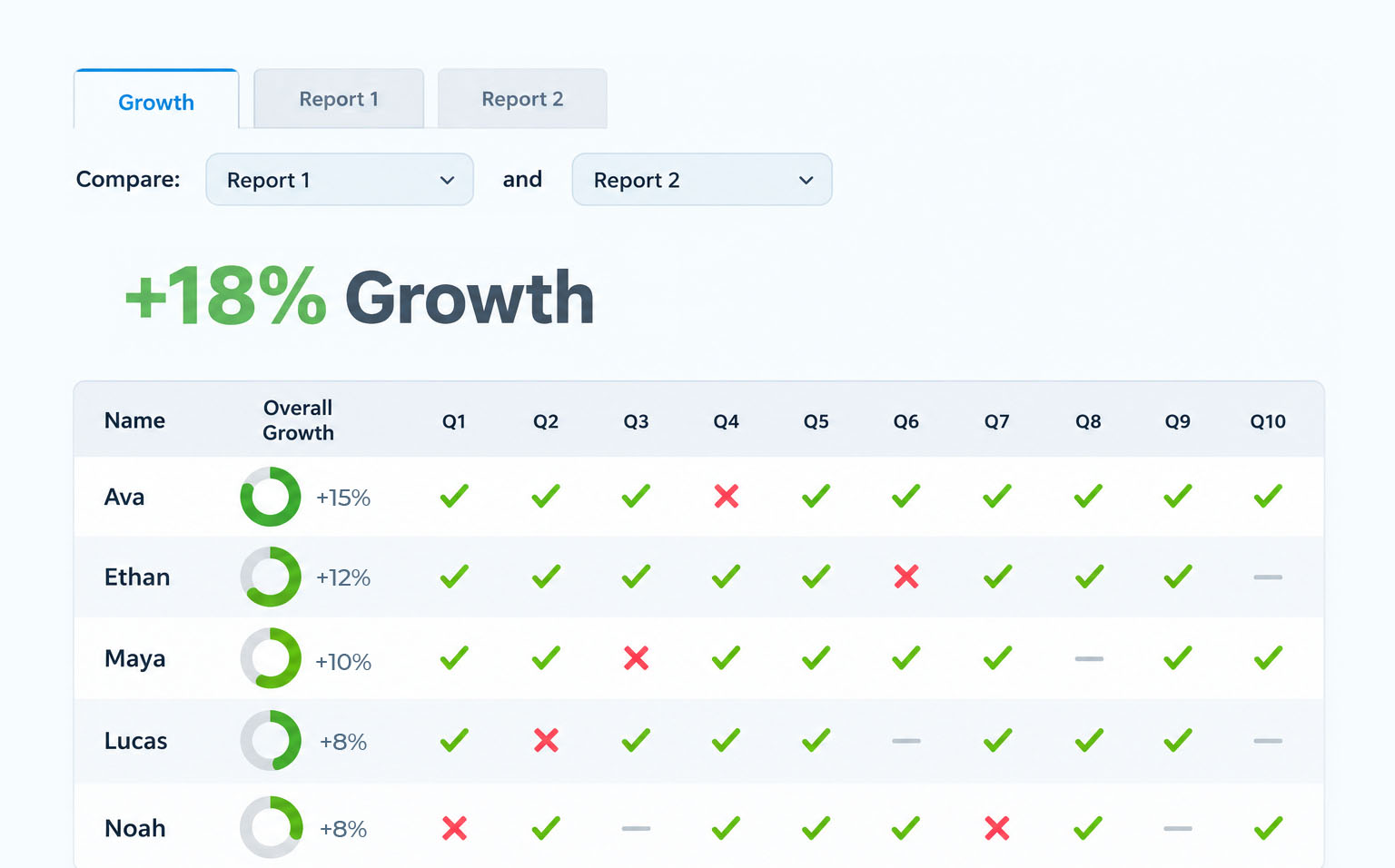
Start from the activity students already completed, the Mission or GameShow from Step 01 and open the Reports page for that activity.
Select Measure Growth on the report.
Assign it again to the whole class, or just the students you intervened with. They get new, comparable questions.
Once activity is completed, on the Reports page, look for the green leaf beside the activity, then open the Growth tab.
Use the dropdown at the top of the page to compare any two reports: before the intervention against after.
Run it again whenever you like. Each attempt makes a fresh set of questions and its own Growth Report to compare.
Students must have finished the original activity: that first attempt is the baseline that the comparison is built on.
Each growth run uses comparable but not identical questions, so you are measuring understanding rather than memory.
Growth data is only as good as the turnout. A handful of responses can skew the picture, so chase the stragglers before you read it.
Step 04 hands you straight back to Step 01. Whatever the follow-up shows becomes the next gap you go after. That is the loop, and it gets faster every time you run it.

